A smart TV can give you local channels, but the television itself is only one part of the answer. You still need to choose how those stations will reach your home: through an antenna, a live TV streaming service or a combination of the two.
That distinction matters because the word "smart" can make a television sound more complete than it is. Apps and Wi-Fi make streaming easy, but they do not automatically place ABC, CBS, FOX, NBC, PBS or a local newscast into your channel guide. The dependable approach is to start with the local programming you care about, check what is available at your address, then match the TV and connection to that plan.
Start with the local programming your household actually uses
Before opening an app or shopping for equipment, make a short list of what would feel like a real loss. It might be a local morning show, weather coverage during storm season, a network series, a nearby team's game, public television or a language-specific broadcast. Include the rooms where those programs matter and whether anyone expects to watch at the same time.
This keeps the decision tied to your routine instead of a large national channel list. Two services can each say they include a major network, yet only one may carry the affiliate that serves your address. VEHO's channel overview is a useful place to think through the kind of live programming you want alongside sports, movies and on-demand viewing.
Write down four things: the local stations you need, the programs you want live, the number of screens in use at once and whether an antenna is practical where the TV sits.
Step 1: Check what your smart TV can do
Most current smart TVs can run streaming apps when they have a stable internet connection. Many also have a tuner and an antenna input that can scan over-the-air broadcasts. Those are separate capabilities. A TV that streams beautifully may still need an antenna connected before it can find broadcast stations, while a TV with a tuner still needs an app or another service for internet-delivered live TV.
Look at the back or side of the television for a round coaxial input marked something like ANT IN, RF IN or Cable/Antenna. If that input is present, the television may be ready for an antenna scan. Then check the app store or home screen for the live TV service you are considering. If the app is unavailable, slow to use or no longer supported on that TV model, a compatible streaming device can be the simpler answer.

For homes that prefer familiar screens, Infiniti TV is built for compatible Roku, Fire TV, Google TV, smart TV, phone and computer setups. When the main television needs a dedicated device and remote routine, VEHO's device comparison can help you compare the options before you buy hardware that does not fit the rest of the setup.
Step 2: Pick the right path for local channels
There are three realistic paths. The best one depends on whether you want free broadcast stations, a broader live channel lineup or a backup that keeps the household flexible.
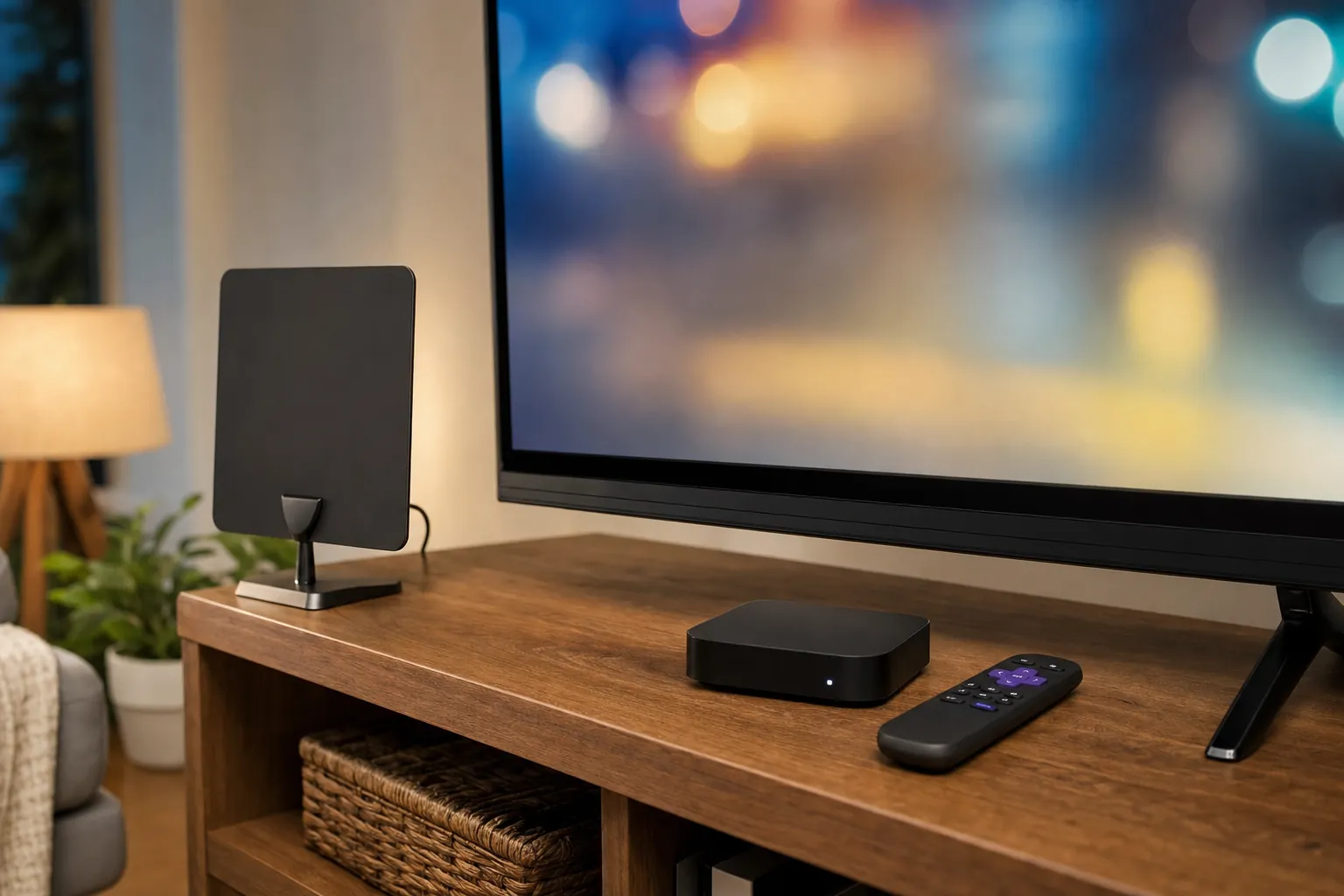
Use an antenna when the main goal is nearby broadcast stations with no monthly local-TV fee. The antenna connects to the TV's coaxial input, and the television scans for the signals it can receive. This can be a strong fit for local news, weather, network programs and some live events, but reception depends on the home and the station.
Use a live TV streaming service when you want local affiliates alongside cable-style channels, sports, a guide and on-demand entertainment in one place. The service runs through an app, so the smart TV or connected streamer needs reliable internet. A live TV service is often easier for a household that wants one familiar starting point for more than just local broadcasts. VEHO's live TV streaming guide explains the questions to settle before choosing a plan.
Use both when you want to keep free broadcast access but also need more live channels or on-demand choices. A hybrid setup is useful when an antenna covers the nearby stations well, while streaming fills in the sports, movies, specialty networks or extra rooms that the antenna cannot handle by itself.
Step 3: Verify local stations by address before you sign up
Local TV is local for a reason. Do not assume a provider's national lineup means it includes the affiliate you watch. Use the provider's address or ZIP-code lookup, then confirm the actual station names before a trial ends or a purchase is final. Hulu's live TV service page, for example, directs viewers to check channels in their area and notes that location restrictions apply. Other services have their own market-by-market availability tools.
Check this against your must-have list. If you watch a local newscast every morning, confirm that affiliate. If a particular game matters, confirm the network that carries it in your market. Also read the plan details for simultaneous streams, because a service that works well in the living room may not cover a second television during a busy evening.

Keep a simple note while you compare: the service, the local stations it listed, the screens included and anything that would require an add-on. It is a better way to choose than trying to remember several nearly identical sales pages later.
Step 4: Use an antenna when free local broadcasts are the priority
An antenna can bring nearby broadcast stations directly to a smart TV without using the internet for those channels. First, use AntennaWeb's address lookup to see the stations predicted for your location. Treat the result as a planning tool, not a guarantee. Signal strength depends on the direction and distance of transmitters, terrain, building materials, antenna placement and the type of antenna you use.
For an indoor antenna, begin high and near a window if the cable length allows. AntennaWeb explains that window placement can help because indoor reception is affected by the home itself, including walls, building materials and nearby wiring. Its antenna guidance also makes clear why a range claim on a box cannot predict exactly what will work in every room.

Connect the antenna to the TV's coaxial input, switch the TV source to its antenna or TV input and run a channel scan. The menu names vary by brand, but the process is common. Samsung's support instructions for scanning broadcast channels show the basic pattern: connect the antenna, choose the TV source, select the broadcasting settings and run an automatic scan. If you move the antenna, scan again before deciding the reception is poor.
An antenna is not a replacement for every cable network or streaming library. It is the right tool when the local broadcast stations are the priority. Pair it with streaming when your home also wants broader sports, movies, specialty channels or on-demand programs.
Step 5: Make the smart TV setup easy to use every day
The best plan still feels frustrating when it takes several remotes and a scavenger hunt through menus to reach a local channel. Put the live TV app near the front of the home screen. If you use an antenna, make the TV input easy to recognize. Keep the remote routine as simple as possible, especially in a home where more than one person uses the main screen.
Test the system during a normal week. Watch the morning news, start a second stream in another room and try the screen that is farthest from the Wi-Fi router. This is where weak wireless coverage, a device that needs an update or a plan with too few simultaneous streams becomes obvious. VEHO's questions and answers page covers the connection basics, including the starting point of 15 Mbps for HD and 25 Mbps for 4K streaming.
If the smart TV is older or its apps are slow, a connected device can be a more reliable way to keep the experience current. Do not replace the whole television by default. Start by deciding what the screen needs to show, then choose the simplest device or service that consistently does that job.
Common mistakes to avoid
Assuming a smart TV automatically includes local channels. A smart TV gives you a place for apps and, on many models, an antenna tuner. It does not promise that every local station arrives without an antenna or a live TV subscription.
Choosing a plan before checking the local affiliate. A huge channel count is not helpful if it misses the local station, sports broadcast or weather coverage your household uses. Check the address lookup first.
Buying a device before deciding how you will watch. A streaming device can make a setup easier, but it cannot replace a missing local affiliate or an antenna signal that never reaches the home. Pick the viewing plan, then choose the device that supports it.
Giving up on an antenna after one scan. Indoor reception is sensitive to placement. Try a higher position or a window-facing location, then scan again. For a fuller look at the streaming-only path, read VEHO's guide to getting local channels without an antenna. For the broader antenna, streaming and hybrid comparison, see how to get local channels without cable.
How VEHO can help
VEHO helps households work through the decisions that come before a smart TV setup becomes frustrating: which local programming matters, which screens need access, whether an antenna is worth trying, how many streams the home needs and whether a compatible device or dedicated streamer will keep the routine simple.
You can explore VEHO's viewing options, compare devices for your screens or talk through your local TV and streaming priorities with VEHO. Bring the channels and rooms that matter, and build a setup around how your household actually watches.
Frequently asked questions
Can I get local channels on a smart TV without cable?
Yes. You can use an antenna to receive nearby broadcast stations when reception is available at your address, or use a live TV streaming service that carries the local affiliates for your market. The television needs the right connection for the path you choose.
Do I need an antenna for local channels on a smart TV?
Not always. An antenna is the free over-the-air option for nearby broadcast stations. A live TV streaming service can deliver local channels through the internet when it carries them for your address. Check the actual stations before committing to either path.
Why is my smart TV not finding local channels?
A channel scan only finds over-the-air broadcasts when an antenna is connected and reception reaches the television. Confirm that the TV source is set to antenna or TV, check the antenna connection and placement, then scan again. If you are using streaming, make sure the service includes your local market.
Can I watch local channels on more than one smart TV?
Yes, but the setup needs to match the household. An antenna may need its own connection path for each television, while a streaming service needs enough simultaneous streams and reliable Wi-Fi for the rooms that watch at the same time.